Launch “CDVI Module Finder”
Select the desired A22K controller, and double click it in the list.

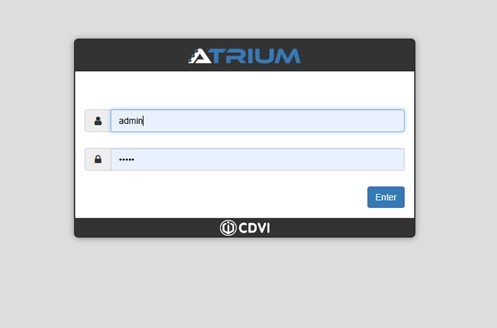
Log in as installer (default login: “admin”, pw: “admin”).
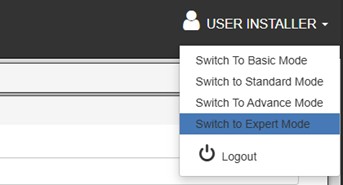
First, set the mode to expert, by selecting this on the top right, under “USER INSTALLER”.
Then, on the users list, click on the “+”-button to add a user.

We will now create a user that has sufficient rights for the daily management of the users with number plates.
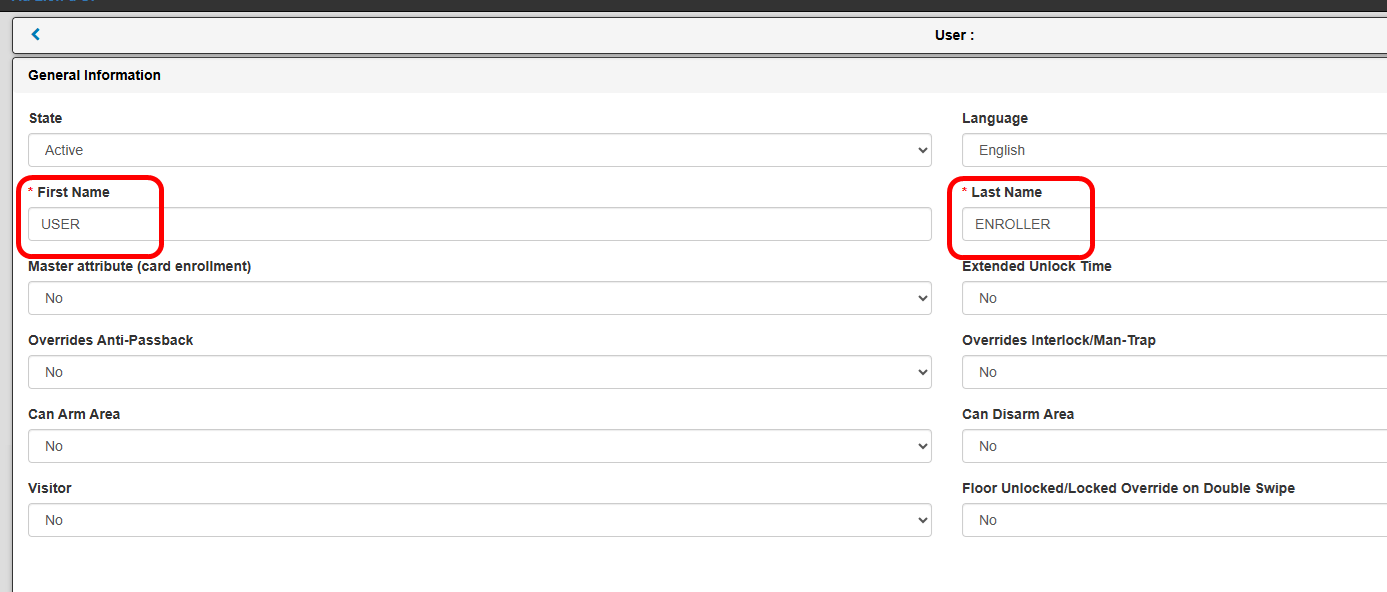
In this case, we give this user the name “USER ENROLLER”.
Enter the name in the “General Information” tab.
After entering the names click on “SAVE”, on the bottom right of the tab.
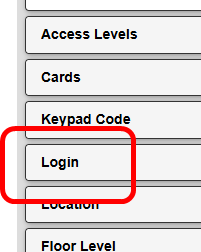
Then, click the tab “Login” to create a login for this user.
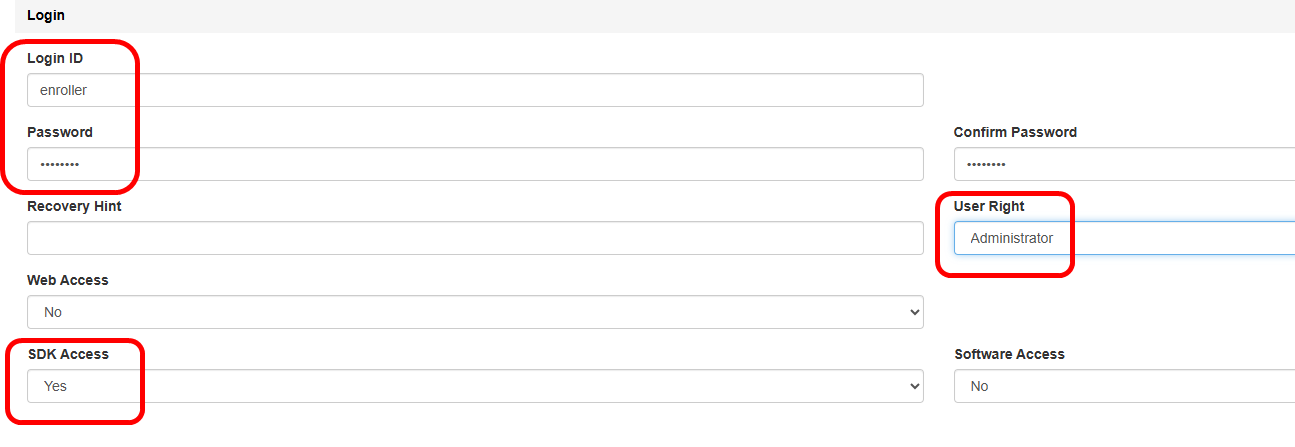
In this tab, enter the desired login and password for the user.
In this example, we’ll use “enroller” for both login and password.
Then, select “Administrator” in the “User Right” drop-down menu, and set the “SDK Access” to “Yes”, as shown below (no need to change the other settings).
Save afterwards.
At this point, we have created a user for the daily management of the number plates.
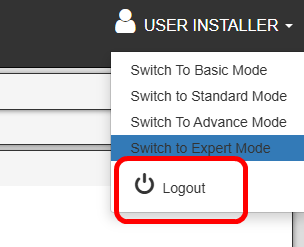
We can now logout and switch to the ANPR tool.
Click on logout in the top right corner, or just close the browser.